
The Silent Frustration of a Spinning Wheel
Have you ever stared at a buffering screen so long you actually thought about throwing your phone at the wall? Yeah, me too. You pay good money for high-speed internet every month, yet a simple YouTube video still freezes right at the best part. Let's skip the complicated tech jargon and fix this headache right now.
My heart started racing as the seconds ticked by, and panic slowly took over. I picked up my laptop and literally walked right next to the router, hoping the signal would magically improve. Nothing changed. The upload failed, I missed my exact deadline window, and I ended up losing a portion of my payment for being late.
I felt completely helpless in my own home. You pay your internet bill every single month, expecting a smooth and reliable service. Yet, there are days when loading a simple web page feels like you are back in the dial-up era.
You try to join an important Zoom call for work, and your voice turns into a robotic stutter, making you look highly unprofessional. It drains your mental energy and leaves you wondering what you are actually paying your service provider for.
 Quick Fixes for a Buffer-Free Life:
-
Move your gear: Get your router out of the closed cabinet and put it high up on an open shelf.
-
Stop the interference: Keep your networking hardware far away from microwaves and baby monitors.
-
Pick the right lane: Connect to 5 GHz when you are close to the router, and 2.4 GHz when you are resting in another room.
-
Ditch the rental fee: Stop paying your service provider for cheap rental equipment and buy your own dedicated modem.
The Invisible Thieves Stealing Your Speed
Before you angrily pick up the phone to cancel your internet subscription, we need to look at what is actually happening inside your house. Most of the time, the problem is not your Internet Service Provider (ISP). The real problem lies in how your wireless network is set up.
Wi-Fi signals are basically radio waves. Just like the radio in your car, these waves can easily get blocked, scrambled, or completely lost before they even reach your phone or laptop.
Let me walk you through the most common reasons why your network is underperforming. Once you understand how these hidden traps work, fixing them becomes incredibly easy.
Internet Speed: Myth vs. Factresulting in a much faster and
-
Myth: Hiding your router behind the TV looks cleaner and does not affect your internet speed at all.
-
Fact: Modern TV panels are full of metal sheets. These sheets act like a solid brick wall for Wi-Fi waves, killing your signal before it even leaves the room. Keep your router out in the open!
Are You Hiding Your Router in the Wrong Place?
Think of your Wi-Fi router as a bright lightbulb. If you want a lightbulb to light up an entire room, you put it high up on the ceiling, right in the center. You would never put a lamp inside a closed closet and expect the whole house to be bright.
Unfortunately, this is exactly what most people do with their internet equipment. Because routers have ugly wires and blinking lights, we tend to hide them. We shove them behind the television, tuck them under the sofa, or lock them inside a wooden cabinet.
Physical barriers are the biggest enemy of your wireless signal. Concrete walls, metal doors, and even heavy wooden furniture absorb radio waves like a sponge. Water is another massive signal killer. If your router is placed next to a large fish tank or a massive indoor plant (which holds a lot of water), your connection will naturally drop.
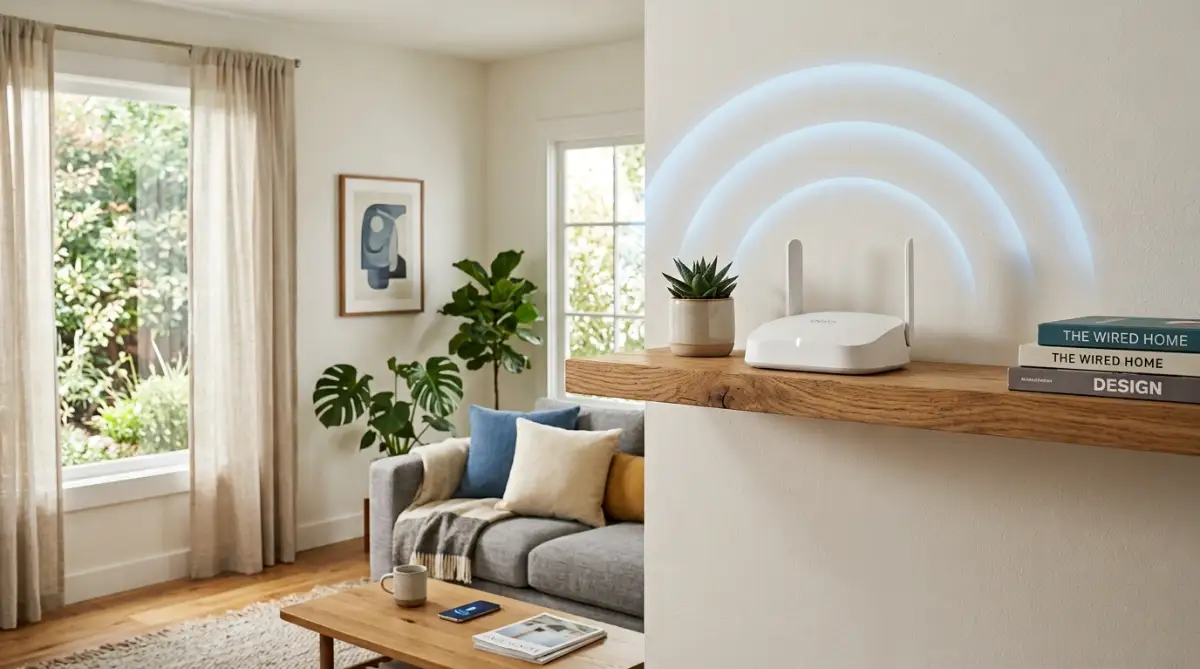
To get the strongest connection, you must place your router in a central, open location. Put it on a high shelf where the signal can easily travel downward and spread across your rooms.

My Personal Realization: I used to keep my router tucked away behind my massive smart TV because I hated looking at the messy cables. I never realized that the thick metal panel inside the TV was completely blocking the signal from reaching my bedroom. The day I moved the router to an open side table, my download speeds literally doubled!
If you want to understand exactly how physical objects destroy your internet speed, I found a fantastic visual explanation for you. Watch this quick breakdown to see how radio waves actually travel through your home.
The Appliance Interference You Never Suspected
Did you know that your kitchen appliances might be fighting with your internet connection? It sounds completely crazy, but it is a proven scientific fact.
Most standard routers send out signals on a 2.4 GHz frequency. The problem is that many other household items use this exact same frequency to operate.
When you turn on your microwave to heat up some food, it leaks a tiny amount of radiation. This radiation operates on the exact same 2.4 GHz channel as your internet. As a result, the two signals crash into each other, creating massive network traffic.
Baby monitors, cordless house phones, and even some older Bluetooth speakers act as invisible jammers. If your home office is right next to the kitchen, you will likely notice a massive drop in speed every time someone uses the microwave.
Keep your networking equipment as far away from heavy electronics and kitchen appliances as possible.
The Great Divide: 2.4 GHz vs. 5 GHz
If you have a modern router, you probably noticed that it creates two different network names. One usually has "2.4G" at the end, and the other has "5G". Understanding the difference between these two is essential for a fast connection.
I like to explain this using a simple driving analogy.
-
The 2.4 GHz Band: This is like a long, winding country road. You can drive very far on it, and it easily goes through walls and floors. However, it is only a single lane. Because every device in your house wants to use it, it gets jammed with heavy traffic very quickly, causing your speed to slow down to a crawl.
-
The 5 GHz Band: This is a massive, multi-lane superhighway. You can drive incredibly fast, and there is plenty of room for heavy data streaming. The only catch? The highway is very short. It cannot easily pass through thick concrete walls.
If you are sitting in the same room as your router and want to play a heavy video game or stream a 4K movie, always connect to the 5 GHz network.
If you are walking out to the garden or sitting three rooms away, switch to the 2.4 GHz network to ensure the connection does not completely drop. Matching your device to the right band instantly stops random buffering.
Background Bandwidth Vampires
Sometimes, your internet is running perfectly fine, but a hidden "vampire" is sucking up all the speed in the background. We have so many smart devices in our homes today that we often forget what they are doing.
Your smartphone might be silently backing up a massive photo gallery to the cloud. Your gaming console could be downloading a 50-gigabyte game update while sitting in rest mode. Even your smart TV might be updating its software without asking you.
All of these background tasks require heavy bandwidth. When multiple devices do this at the same time, there is barely any speed left for you to browse the web or join a video call.
To fix this, log into your device settings and turn off "automatic updates" during your active working hours. Schedule heavy downloads for late at night when everyone is asleep.
Overcrowded Network Channels
Let’s imagine you live in an apartment building. You have a router, your next-door neighbor has a router, and the person living directly above you has one too.
By default, most routers are programmed to broadcast their signal on the exact same channel (usually Channel 1, 6, or 11). When everyone in the building is transmitting data on Channel 6, the airwaves become incredibly crowded.
Your devices get confused, trying to filter out your neighbor's data from your own. This massive overlapping causes your web pages to load at a frustratingly slow pace.
You can easily fix this by downloading a free "Wi-Fi Analyzer" app on your smartphone. The app will scan your room and show you exactly which channels your neighbors are using.
If you see that everyone is crowded on Channel 6, you can log into your router's admin settings and manually switch your network to Channel 1 or 11. Moving to an empty channel gives your data a clear, private path to travel, resulting in a much faster and smoother browsing experience.
My Go-To Free Tools to Check Wi-Fi Traffic:
-
For Android: Wi-Fi Analyzer (Open Source) - Shows you a live, colorful graph of all the neighborhood networks around you.
-
For iPhone: AirPort Utility - A hidden gem made by Apple that includes a built-in Wi-Fi scanner right in your settings.
-
For Windows/Mac: NetSpot - Gives you a great visual map so you can physically see where the dead zones are in your house.
Beyond the Basics: Taking Total Control of Your Network
Now that we have covered the physical placement of your equipment, it is time to look at the internal settings. Most people buy a router, plug it into the wall, and never look at it again.
This is a massive missed opportunity for better speeds. Your home network is a living system that needs regular maintenance.
If you just set it and forget it, you will eventually experience sudden drops in performance. Let me share a few advanced secrets that completely changed the way I manage my own home network.
The Magic of the QoS (Quality of Service) Feature
Imagine a busy restaurant where everyone is shouting their orders at the exact same time. The waiter gets confused, and nobody gets their food on time.
This is exactly what happens when your smart TV, your laptop, and your teenager’s gaming console all demand data at the same moment. Your router tries to serve everyone equally, which means all your devices end up running slowly.
To fix this, you need to log into your router’s admin panel and look for a setting called Quality of Service (QoS). This feature acts like a VIP bouncer for your internet traffic.
You can manually tell your router to prioritize specific devices over others. For example, you can set your work laptop as the highest priority during the day.
If someone else in the house starts downloading a massive file, the router will automatically slow down their download to ensure your Zoom meeting never stutters. Learning how to manage this traffic is a game-changer for working from home.
If you are dealing with constant buffering because of family members, you need to stop dealing with recurring network headaches by taking control of these priority settings. Setting clear rules for your network traffic solves the issue instantly.
Why You Need to Change Your DNS Server Today
Every time you type a website name into your browser, your computer needs to translate those letters into a string of numbers. This translation process is handled by a Domain Name System (DNS) server.
By default, your Internet Service Provider uses their own DNS servers, which are usually incredibly slow and poorly maintained. It takes them extra time to figure out exactly where you want to go on the web.
You can easily bypass this by changing your DNS settings to a free, public server provided by tech giants. For example, Google offers a public DNS (8.8.8.8) that is known for being lightning-fast and highly secure.
Switching to a better server reduces the time it takes for a web page to start loading. You can read a deep technical breakdown on how a DNS translates web addresses if you want to understand the exact science behind it.
Mesh Networks vs. Cheap Extenders
When people have "dead zones" in their house, their first instinct is to buy a cheap Wi-Fi extender from the local electronics store. I have made this exact mistake myself, and I highly advise against it.
An extender basically catches your existing signal and shouts it further down the hallway. The problem is that it cuts your actual internet speed in half during the repeating process.
Instead of dealing with laggy extenders, you should consider investing in a Mesh Wi-Fi System. A mesh system uses multiple smart hubs placed around your house that talk to each other seamlessly.
They create one giant, unified blanket of fast internet. As you walk from your living room to your bedroom, your phone automatically connects to the closest hub without dropping the signal for even a second.
This type of technology was originally designed for massive corporate offices, but it is now highly affordable for normal homes. You can check out expert guides on how enterprise mesh networks function to see why this technology is superior to old-school extenders.
Keep Your Firmware Fresh and Updated
Just like your smartphone needs regular software updates to fix bugs, your router needs them too. These updates are called firmware.
Manufacturers release new firmware to patch security holes, improve signal processing, and make the device run much smoother. Unfortunately, older routers do not update themselves automatically.
You have to log into the router settings through your web browser and click the update button manually. Doing this simple task once every few months can drastically improve your overall network stability.
The Silent Network Killers: What You Are Doing Wrong
Troubleshooting network issues can feel like walking through a minefield. Many people try to fix the problem themselves but end up making things much worse.
There are a few massive mistakes that I see people making over and over again. If you do not avoid these traps, you will continue to waste your money on high-speed internet packages without ever feeling the real speed.
Let us break down the most common pitfalls so you can protect your digital sanity.
Paying Monthly Rent for ISP Equipment
When you sign up for an internet package, the company usually hands you a large black box that acts as both a modem and a router. They will charge you a "small" rental fee every single month for using their equipment.
Here is the sad reality: the equipment they provide is usually incredibly cheap, outdated, and barely capable of handling a modern smart home. You are paying premium prices to rent a low-quality device that is secretly bottlenecking your speed.
Over a few years, those small monthly rental fees add up to hundreds of dollars. You are basically throwing your hard-earned money out the window for a frustrating experience.
You should always buy your own dedicated modem and a separate, high-quality router. Not only will you stop paying that annoying rental fee, but you will also experience a massive jump in performance.
Many people refuse to change their setup because they are scared of tech issues. But to get real results, you must focus on getting to the root cause of everyday frustrations instead of settling for bad equipment.
Hiding Your Network Name for "Security"
There is a very old myth on the internet that hiding your network name (SSID) makes you completely invisible to hackers. Many people log into their settings and choose the "hide broadcast" option.
In reality, hiding your network name does absolutely nothing to stop a determined hacker. Hackers use simple scanning tools that can easily spot hidden networks in seconds.
All you are actually doing is making life harder for your own devices. When your network is hidden, your phone and laptop have to constantly shout into the void, asking if the network is nearby.
This constant searching drains your device battery extremely fast and causes random connection drops.
Always keep your network name visible and secure it with a strong, complex WPA3 password instead. According to the official guidelines on broadband and network security, a strong encryption protocol is always better than simply hiding your network name.
Using Damaged or Outdated Ethernet Cables
We talk so much about wireless signals that we often forget about the physical cables connecting our devices. Your router connects to the main internet line using an Ethernet cable.
If you look closely at the cable, you will see a small label printed on it. If it says "Cat5", you are using a severely outdated cable that physically cannot transfer high speeds.
Old cables get bent, stepped on, and slowly degrade over time. Even a tiny micro-tear inside the plastic casing can cause massive data loss and intense lag spikes during video calls.
You need to replace these old cables with modern Cat6 or Cat7 cables. These newer versions are heavily shielded against outside interference and can handle massive gigabit speeds effortlessly.
Sometimes, the simplest physical fixes solve the biggest digital problems. This is very similar to how optimizing your smartphone storage physically allows the phone’s memory chips to function without overheating.
Confusing a Restart with a Factory Reset
When the internet stops working, the universal advice is to "turn it off and back on again." This is actually great advice, as rebooting clears the router's temporary memory and fixes minor bugs.
However, many people confuse a simple reboot with a hard factory reset. Instead of just unplugging the power cord, they take a little pin and hold down the tiny "Reset" button on the back of the machine.
Pressing that tiny button wipes out every single custom setting, password, and network name you have ever created. Your router goes completely blank, returning to the exact state it was in when it left the factory.
You will suddenly find all your smart home devices disconnected, and you will have to set up your entire network from scratch.
Never touch that tiny reset hole unless you are actively trying to wipe the machine to sell it. Always restart your router by simply pulling the power plug from the wall, waiting thirty seconds, and plugging it back in.
If you find yourself constantly pulling the plug out of anger, you need to start breaking the cycle of repeated tech issues by diagnosing the actual source of the interference.
Your Blueprint for a Buffer-Free Digital Life
Fixing a slow internet connection does not require a degree in computer science. It simply requires a little bit of patience and a willingness to look at your home environment differently.
By moving your router out of the dark corners and placing it in a central, elevated spot, you instantly give your devices a clearer path to the internet. Switching to the right frequency band ensures you have the exact type of speed you need for your specific task.
Remember to regularly audit the devices connected to your network. Just like you need to keep making room on your device memory for new photos, you must clear out old, unused devices that are hogging your internet bandwidth.
Stop settling for the cheap, outdated equipment provided by your internet company. Taking full ownership of your hardware is the single best investment you can make for a stress-free digital life.
It is time to stop letting a spinning blue wheel dictate your mood and productivity.
I know exactly how frustrating it feels to pay for a service that constantly fails you when you need it the most. But I promise you, by taking just ten minutes today to apply these simple tweaks, you will feel an immediate sense of relief. Start with your router placement right now, and enjoy the smooth, fast connection you actually deserve!
Answers to Your Biggest Internet Frustrations
Why is my Wi-Fi slow on my phone but fast on my computer?
Your phone might have a much weaker internal antenna compared to your large desktop computer. It could also be bogged down by too many background apps trying to sync data at the same time. Try clearing your phone's background processes and reconnecting to the 5 GHz network for a quick fix.
Do internet routers actually go bad over time?
Yes, routers absolutely degrade over time due to constant heat and running 24/7. Their internal processors get outdated and struggle to handle the high demands of modern smart home devices. If your router is more than four years old, replacing it will usually give you a massive speed boost.
Will buying a Wi-Fi extender fix my dead zones?
A cheap extender might push the signal further, but it usually cuts your actual internet speed in half because it has to receive and re-transmit data on the same radio channel. If you have serious dead zones in a large house, investing in a proper Mesh Wi-Fi system is a much better and faster solution.
How often should I reboot my internet equipment?
It is highly recommended to reboot your modem and router at least once a month. This simple process clears out the device’s short-term memory and forces it to find a fresh, uncrowded network channel. You can even plug your router into a smart plug to automate this process in the middle of the night.
Can my neighbor's network slow down my internet?
Yes, especially if you live in a dense apartment building where dozens of routers are broadcasting right next to each other. If everyone is operating on the exact same wireless channel, the signals crash and cause heavy interference. Logging into your settings and switching to a less crowded channel will easily solve this issue.
Disclaimer: The information provided in this article is for educational and troubleshooting purposes only. Internet speeds and network configurations vary heavily depending on your specific Internet Service Provider (ISP), hardware models, and local environment. Always consult with a certified IT professional or your service provider before making advanced hardware changes or purchasing new networking equipment. We are not responsible for any accidental data loss or connectivity issues that may occur during the troubleshooting process.


