The Dreaded "Storage Full" Nightmare
You know that mini heart attack you get when you are about to snap the perfect photo, and your phone suddenly screams "Storage Full"? Yeah, I had that happen right in the middle of my best friend's wedding. I stood there wildly deleting apps while the big cake-cutting moment passed me by. It was totally embarrassing, but it forced me to figure out why my device was acting like a hoarder. I am going to show you exactly how I got all my memory back without losing a single precious photo.
We all know that sinking feeling in our stomachs when our devices refuse to save one more picture. You want to download a new app for work, but your device demands a sacrifice. It feels like you constantly have to choose between your favorite memories and your everyday needs. This endless cycle of deleting and regretting completely ruins your peace of mind.
The heavy mental toll of seeing that "Memory Full" warning every single morning is totally unnecessary. You might think your phone is packed with important items, but the reality is quite different. There are invisible ghosts eating up your space, and you can easily banish them.

Quick Action Plan to Regain Your Memory:
-
Toggle off the "Auto-Download Media" setting in WhatsApp and Telegram today.
-
Offload heavy travel or shopping apps you only use once a year.
-
Change your camera settings to "High Efficiency" to cut your photo file sizes in half.
-
Manually empty your "Recently Deleted" photo folder—those files stick around for 30 days!
Uncovering the Hidden Space Eaters
You do not need to become a tech genius to understand what is secretly filling up your device. Most of the time, the things taking up the most room are things you never even asked to keep. Let us walk through some incredibly simple habits you can start today to get your device breathing again.

Slaying the App Cache Monster
Think of app cache like the tiny scraps of paper you leave on your desk while working on a project. Over time, those little scraps pile up until you cannot even see your desk anymore. Apps like Instagram, TikTok, and Chrome save these temporary files so they can load faster the next time you open them.
While that sounds helpful, these files can easily grow to several gigabytes. You can safely clear this data without losing your login details or your saved preferences.
For Android users: Go to Settings, tap on Apps, select your most used app, and hit "Clear Cache."
For iPhone users: You might need to temporarily offload or reinstall heavy apps to clear out this hidden junk. Doing this once a month will keep your system running incredibly smooth.
My Personal App Cache Reality Check:
I tested my own phone last week, and here is exactly what I found hiding in my app settings. You will probably see similar numbers on your device:
| App Name | What It Hoards | Space Wasted |
| TikTok | Endless scrolled videos | 1.8 GB |
| Story drafts & filters | 1.2 GB | |
| Chrome | Old website images & cookies | 900 MB |
| Spotify | Album covers & song previews | 1.5 GB |
Taming the Wild Messaging Apps
Messaging apps are easily the biggest secret hoarders on your entire device. WhatsApp, Telegram, and Messenger often automatically download every single video, meme, and voice note your friends send you.
You might be part of a family group chat that sends dozens of "Good Morning" videos every single week. Before you know it, those funny clips are silently eating up massive chunks of your memory.
You need to dive into the settings of your specific messaging apps right now. Look for the "Storage and Data" section and immediately turn off the "Auto-Download Media" feature. This simple flip of a switch puts you back in the driver's seat.
Why You Should Ditch Automated Junk Cleaners
Many people rush to download heavy "junk cleaner" apps from the app store when they run out of space. Let me tell you right now, this is usually a terrible idea. These third-party cleaners often run constantly in the background, draining your battery and showing you endless pop-up ads.
Myth vs Reality:
-
Myth: Cleaner apps magically give you more memory.
-
Reality: They mostly just clear recent apps from your RAM, which actually slows down your phone later.
Your smartphone already has amazing built-in tools to handle storage optimization safely. Trust your device's native settings instead of downloading a shady tool.
Here is a highly effective way to handle your digital cleanup process:
| Action Type | What It Does | Safety Level | Space Saved |
| Clearing Cache | Removes temporary app files safely | High | 1GB - 3GB |
| Disabling Auto-Downloads | Stops WhatsApp from saving memes | High | 2GB - 5GB |
| Offloading Apps | Removes the app but keeps your data | Medium | 1GB - 4GB |
Smart Ways to Protect Your Visual Memories
Photos and videos are the heart and soul of our digital lives. They capture our highest highs, our funny mistakes, and our everyday joy. So how do we keep them safe without letting them completely choke our device?
[Stop Losing Your Memories to Storage Errors]
Are you tired of staring at confusing cloud settings? Watch this incredibly simple breakdown to instantly secure your photos without spending hours stressing over technical details.
The Magic of Offloading Unused Apps
We all have those random apps we downloaded for a single trip or a one-time discount code. You probably have a parking app for a city you have not visited in months. These unused applications are just sitting there collecting digital dust.
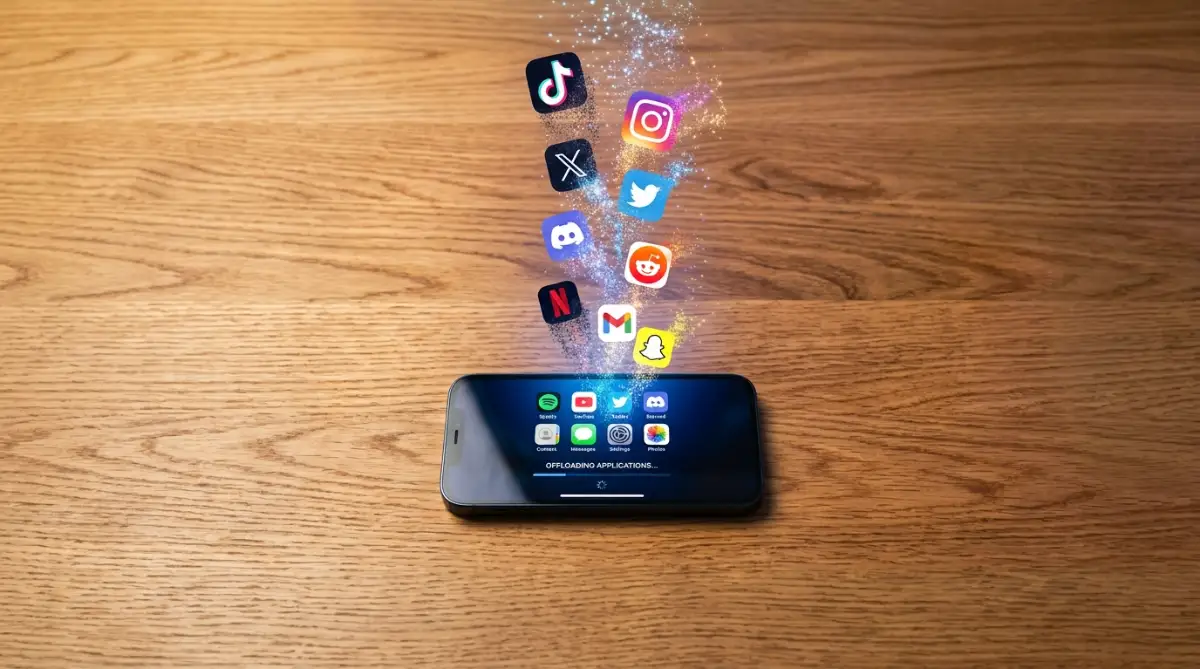
Apple devices have a fantastic feature called "Offload Unused Apps" built right into the settings. When you turn this on, your phone automatically removes the app but keeps all your personal data intact. If you ever need it again, you just tap the icon, and it downloads exactly how you left it.
Android devices have a similar auto-archive feature in the Google Play Store settings. It is like putting your winter clothes in vacuum-sealed bags during the summer. You still own them, but they are out of the way.
I remember losing almost 500 photos from a family road trip simply because I assumed they were backing up, but my cloud account was actually full. I learned the hard way that you must physically check your sync status every single month to avoid a total disaster. Never trust the little spinning circle until you see the "Backup Complete" message.
Dealing with Duplicate Photos and Burst Shots
When you try to get the perfect group photo, you probably take ten or fifteen shots in a row. You intend to keep only the best one, but you naturally forget to delete the blurry outtakes. Over a few months, these duplicate shots multiply like crazy.
Both iOS and Android now feature smart folders that automatically detect duplicate photos. You can easily merge them with a single tap, keeping the highest quality version and deleting the rest. Make it a habit to review these smart folders while you are waiting in line for coffee or sitting on the bus.
Maximizing Built-in Cloud Solutions
Cloud storage sounds intimidating to a lot of people, but it is actually your best friend. Think of it as a highly secure, invisible locker for your digital life. Services like Google Photos or iCloud give you a generous amount of free space just for signing up.
Once your photos are safely backed up to the cloud, you can use the "Free Up Space" button inside the app. This incredibly smart feature scans your device and deletes only the local copies of photos that are already safely stored online. You can still see all your pictures, but they no longer drag down your device memory.
If you shoot highly detailed 4K videos, the cloud is absolutely essential. Even a short two-minute video in 4K can take up a massive amount of room. Uploading those heavy files to your cloud drive instantly gives your device room to breathe again.
Stop Hoarding Offline Content
Streaming services like Spotify, Netflix, and YouTube allow you to download content for offline viewing. This is fantastic when you are on an airplane without a network connection. However, people often forget to delete these movies and playlists once the trip is over.
Do you really need those ten episodes of a cooking show saved directly to your device? Go into your streaming apps and regularly clear your downloaded content section. You can always stream the music or watch the show again when you are safely connected to home Wi-Fi.
Quick Offline Cleanup Checklist:
-
Spotify: Check your "Liked Songs" — do you really need 500 tracks downloaded for offline listening?
-
Netflix: Go to "Downloads" and delete that movie you already watched on your flight last month.
-
Google Maps: Open your offline maps setting. If you are back from your road trip, delete the map of that specific state.
By making these simple adjustments, your device will feel brand new again. You will finally have the freedom to take amazing pictures, download helpful tools, and enjoy your digital life without any annoying warning messages ruining your day.
Pro-Level Habits to Keep Your Device Lightning Fast
We have already covered the basics, but now it is time to look at some advanced tricks that tech experts use every single day. You do not need a computer science degree to apply these habits. By making a few smart tweaks deep inside your settings, you will never have to worry about a full memory warning again.
Automating Your Audio and Podcast Apps
If you love listening to podcasts during your morning commute, you might be unknowingly hoarding massive audio files. Most podcast apps automatically download new episodes the second they are released. An hour-long audio file can easily take up over 100 megabytes of space.
If you subscribe to five or six daily shows, your device is quietly downloading huge files every single night while you sleep. To fix this, you need to turn on the auto-delete feature.
Go into Apple Podcasts, Spotify, or your favorite audio app right now. Look for the setting that says Remove Played Episodes and toggle it on. This simple change ensures that the moment an episode finishes, it disappears completely, leaving your phone light and fresh.
Switching to High-Efficiency Camera Settings
Have you ever wondered why modern smartphone photos take up so much room? By default, many devices save pictures in older, heavier formats just to be compatible with ancient computers. But you can easily change how your camera saves data.
Both modern iPhones and newer Android devices offer a highly advanced camera setting called High Efficiency. You can usually find this by going into your main Settings, tapping on Camera, and selecting Formats.
When you choose this option, your phone uses a modern file type that literally cuts the file size in half. The amazing part is that the photo quality remains absolutely identical. You get to shoot stunning portraits and beautiful videos without sacrificing half of your hard drive.
Emptying the Hidden Digital Trash Cans
One of the most common reasons people fail to get their space back is because they forget how modern software actually works. When you hit the delete button on a video, it does not actually leave your device right away.
Smartphones have built-in safety nets to protect you from accidental deletions. The files you delete are instantly moved to a hidden Recently Deleted folder. They sit there for about a month, slowly eating up your memory, just in case you change your mind.
If you are trying to free up space right this second, you have to go into your gallery app, scroll all the way down to the bottom, and find that specific folder. Once you are inside, you can manually empty the trash to instantly regain those lost gigabytes.
Securing Your Digital Workspace Safely
Sometimes, the files clogging up our personal devices actually belong to our jobs. We take screenshots of important emails, save messy PDF files from clients, and download random spreadsheets just to check them on the go.
Mixing work files with your personal gallery is a very messy habit. If you are cleaning out your business files, remember to handle them with extreme care. For instance, securely handling passwords on chat apps is much smarter than taking random screenshots of your login details and leaving them to rot in your camera roll.
By using proper enterprise cloud drives for your job, you keep your personal gallery strictly for your family and friends. This separation gives you incredible peace of mind. For more insights on handling data properly, checking resources from the National Institute of Standards and Technology can help you understand basic device safety standards.

The Dangerous Traps That Can Ruin Your Device
When that terrifying "Storage Full" message pops up, people often panic. In that moment of panic, they make rash decisions that can permanently damage their software or compromise their privacy. Let us look at the most common traps you must avoid at all costs.
Falling for Fake Speed Booster Apps
You have probably seen those flashy internet ads promising an app that will magically clear 50GB of junk from your phone in five seconds. These applications are almost always a complete scam.
Instead of helping you, these third-party cleaner apps demand access to your entire photo gallery, your contact list, and your personal messages. They run constantly in the background, showing you highly annoying pop-up ads and draining your battery health entirely.
Even worse, many of these "free tools" are actually disguised malware. Granting them permission to scan your phone can lead to serious privacy breaches. Taking just a few minutes to recognize sneaky phishing tricks will easily save you from downloading dangerous software that pretends to be a helpful utility.
Smart User Do's and Don'ts:
-
Do: Use the built-in storage manager provided by Apple or Google.
-
Don't: Download random cleaner apps from unknown developers.
-
Do: Restart your device once a week to naturally clear out temporary RAM.
-
Don't: Trust apps that promise to "boost" your internet speed by deleting files.
Relying Entirely on Cheap SD Cards
If you use an Android device, you might think the ultimate solution is buying a giant, incredibly cheap memory card from an unknown online seller. This is a massive mistake that ends in heartbreak.
Flash memory degrades over time, and cheap knock-off cards degrade incredibly fast. Think of a cheap SD card like a thin piece of paper. If you keep erasing and rewriting on that same piece of paper, it will eventually tear.
When a cheap memory card fails, it happens instantly and without warning. You will wake up one day, open your gallery, and see gray exclamation marks where your family photos used to be. Always invest in reliable, trusted brands when buying physical storage. You can often check Consumer Reports guidelines to learn which technology brands actually offer reliable memory hardware.
Ignoring Critical System Updates
Many users actively avoid updating their operating system because they believe the new software will take up too much room. You might be hitting "Remind Me Later" on that system update for months.
This is an incredibly dangerous habit. Software updates do not just bring new emojis; they bring essential patches that keep your device running smoothly. Furthermore, tech companies regularly optimize how their software handles background data.
Sometimes, installing the latest update actually gives you more free space because the new software is much better at compressing background files. Keeping your operating system outdated leaves your personal files totally exposed. Trusted university IT departments, like the team at Stanford University IT, constantly advise users to update immediately to maintain a healthy and secure device.
A Brighter, Stress-Free Digital Environment
You now have all the exact tools and knowledge you need to take back control of your smartphone. You no longer have to feel that awful anxiety when you want to record a video or download a fun new game.
Managing your digital space is not about deleting the things you love. It is about clearing out the invisible junk that you never wanted in the first place. By setting up auto-deleting podcasts, clearing your browser cache, and smartly utilizing high-efficiency photo formats, your device will suddenly feel brand new again.
Your Simple Action Plan for Today:
Take five minutes right now to check your messaging app settings and turn off auto-downloads. Then, head over to your recently deleted gallery folder and empty the trash. Just these two quick actions will likely instantly free up enough room for hundreds of new pictures.
You deserve a device that works perfectly for you, not against you. Stop letting old cached files and duplicate photos ruin your digital experience. Take a deep breath, follow these simple steps, and watch your storage problems completely disappear.
I finally stopped fighting my phone every morning, and my device feels incredibly fast again. My absolute favorite part is never having to randomly delete photos of my dog just to read an important email. You can easily take these simple steps today and enjoy your memories without any stress.
Frequently Asked Questions About Device Memory
Does deleting old text messages really free up space?
Yes, it makes a massive difference. While pure text does not take up much room, old message threads are usually packed with thousands of old photos, GIFs, and short video clips. Setting your phone to automatically delete messages older than one year will save you gigabytes of room.
Why is the "System Data" or "Other" category so huge?
System Data is basically a dumping ground for temporary files, software update logs, and leftover website data from your browser. You cannot manually delete this folder, but you can heavily reduce its size by simply turning your phone off and on again, or by clearing your Safari and Chrome history.
Will I lose my backup photos if I delete the main gallery app?
If your photos are securely backed up to a service like Google Photos, deleting the local app off your phone will not delete the pictures from the cloud. However, you should always double-check that the sync is 100% complete before you start manually removing apps from your home screen.
Is it safe to clear data on my everyday apps?
Clearing the "Cache" is always safe and just removes temporary junk files. However, if you click "Clear Data," the app will completely reset as if you just downloaded it. You will have to log back in and reset your preferences, so only clear data on apps where you remember your passwords.
Do offline maps take up a lot of memory?
Yes, downloading maps for offline use in apps like Google Maps can consume a huge amount of data. If you recently traveled and downloaded the map of an entire city, it is highly recommended to go into your map settings and delete that specific offline area once you return home.
Disclaimer: The information provided in this article is for general educational and informational purposes only. We are not responsible for any accidental loss of data. Please ensure you have securely backed up all your important files, photos, and documents to a verified cloud service or external hard drive before making any major changes to your device settings or deleting any applications.